Monday, May 5, 2008

microsoft Monday: outlook express "Unknown Error 0x800C0131, 0x800C0133"


Running "outlook express" [a eMail windows program] results in this error:
"An unknown error has occurred. Account: 'name', Server: 'mail.yourdomain.com', Protocol: POP3, Port: 110, Secure(SSL): No, Error Number: 0x800C013x"

Possible cause:
It appears the "inbox" is limited to approx. 2500 eMails, depending on total size of attachments.

Possible solution:
1.) Create new folders. (right-click in the left-hand folder field, and select "new folder".)

     Name them "Pictures, Inspirational, Humour, Dirty... etc."
     Move existing eMails to one of these new folders.  (Preferably to a matching folder category.)

     [Click and hold on each eMail, and drag to the folder.]
     [Holding down the 'Control' key while clicking eMails, allows multiple selections.]
     [Holding down the 'Shift' key while clicking an eMail, then clicking another one further down, allows selecting a range of eMails.]

      Repeat until the inbox is a considerably smaller size.

      Attempt to download more eMail.


2.) Click 'Tools', click 'Options', click 'Maintenance', select 'Compact Messages'.
      This will take some time.

      When complete, attempt to download more eMail.


Sunday, May 4, 2008

Friday, May 2, 2008

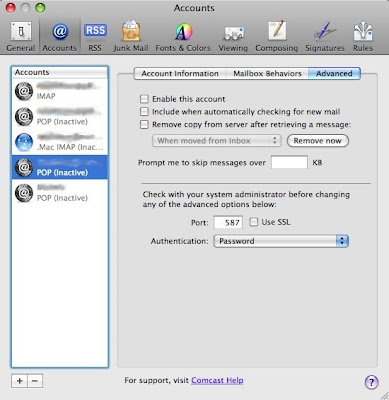
Can't send eMail with comcast account?


Change the outgoing server port to 587, but don't check SSL...

Run mail.
Select the 'Mail' menu (next to the Apple symbol).
Select 'Preferences'.
Click 'Accounts' in the window which opened.
Select the comcast account.
Click 'Advanced'.
Change the port number from 110 or 995, to 587. Don't check SSL.
Close the window, Click 'Save' when prompted.


Tuesday, April 29, 2008

iPhone / iTouch app & repo (source) locator:


iSpazio.net has released a new application RepoName which lists repositories for most known apps!

You can even eMail a request to locate an missing app.


Repository - http://repo.codegenocide.com/

[See post on entering repo's here.]


Swee.


Monday, April 28, 2008

iPhone / iTouch power saving tips:


The power consumption for the iPhone / iTouch isn't bad considering its 400mhz processor, and large backlit display.

We have never run out of power in the past year using our iPhones.
We do have mobile and/or AC adapters on hand when we travel, however, and we're not afraid to use them.

Still, there are a few things you can do to preserve battery life...


Keep your device out of direct sunlight, or any hot environment.
This will degrade your battery life significantly. (Ideal temperature is 72℉, 22℃)

Keep updated to the latest software.
Apple is constantly tweaking their software.
(If your device is hacked, check with the online community before updating, however....)

Adjust the backlight display lower than the default of 50%.
Tap 'Settings', tap 'Brightness', and slide to a comfortable level.

Turn off "Push eMail" rely on intervals, rather than instantaneously.
Tap 'Settings', tap 'Mail', select the 'push' account, tap 'Use Push Mail' to Off.

Set eMail retrieval to manual. (or every hour, half-hour?)
Tap 'Settings', tap 'Mail', tap 'Auto-Check', select your interval.

Check fewer eMail accounts.
(Maybe create a free account [ex: gMail], and forward, or have your accounts retrieved by the new one.

Turn off WiFi when you aren't using it.
Tap 'Settings', tap 'Wi-Fi', tap 'Off'.

Turn off Bluetooth when not in use.
Tap 'Settings', tap 'General', tap 'Bluetooth', tap 'Off'.

Set the display screen lock to a short time span.
Tap 'Settings', tap 'General', tap 'Screen Lock'.

Lock your device when through using it.
Press the 'Sleep' button. (The one on top...)

Use Screen Dimmer, if equipped.
The third party app 'Extended Preferences' provides a screen dimmer option, you can set (aside from the screen lock option).

FYI; Placing your finger above the earpiece on the iPhone when waking allows the phone to dim its display. (It then assumes its in a dark room, keeping the backlight dimmer.)

Turn off the music equalizer.
Tap 'Settings', tap 'iPod', tap 'Equalizer', select 'Off'.

When on a call, press the 'Sleep' button (if using a hands-free device) to turn off the display, the call is not effected.

Press and hold the 'Home' button a couple seconds to stop the app when finished.
Some apps use CPU cycles if left running. (Quickly pressing the 'Home' button.)

Battery maintenance:
It is recommended to run the battery down as low as possible about once a month.


Friday, April 25, 2008

> drink potion

When you drink it, you die.  It was liquid death.  It has killed you.

Would you like to play again?  Y/N


>  


Changing the default iPhone / iTouch password.


[Firmware earlier than version 1.1.3 and using BSD Subsystem earlier than 2.0 can skip to the third step**.]


The supplied UNIX passwd command in BSD Subsystem is broken for firmware 1.1.3 and 1.1.4.
Attempting to change the password under firmware 1.1.3 or 1.1.4 will result in your device continuously rebooting.
(The reboot fix involves holding both the Power button and the 'Home' button down for at least 30 seconds, then [upon seeing a triangle icon], plugging the device into iTunes for restoration.)

What to do, what to do.
Ah-Ha!  Replace the broken passwd command with the older, but working version...


iPhone / iTouch using firmware version 1.1.3 or 1.1.4, using BSD Subsystem 2.0, follow these steps:


First, download the older, but working unix passwd command.


Second, using, as always, CyberDuck; SSH** to your  /usr/bin  directory, and replace [drag and drop] the old cmd with the new one.

Now, click on the 'passwd' file in the CyberDuck window listing (to highlight it), then right-click and select 'Info'  -verify the file permissions as (755).  [all except group-write and others-write checked.]


Third, run Terminal, and type  ssh root@youripaddress
When prompted, enter the default password  alpine    (Firmware prior to 1.1.3, has the password  dottie  )
Type  passwd  and press 'return'
Type your new password as directed.
Type  exit  and quit Terminal.


Fourth, push the 'Disconnect' button on CyberDuck, and reconnect again, using your new password.


Don't forget to turn the device's SSH OFF when done.


** Basic SSH instruction within the previous post here.

Thursday, April 24, 2008

iPhone / iTouch Manual Backup : (


[This refers to hacked devices.]
Apple describes the iTunes automatic backup here.

While there is no application to backup the device odomatically, you can backup manually.


Its recommended to use an app like Insomnia, (or tap 'Settings', tap 'Display', and set Screen Lock to 'Never') to prevent the device from sleeping temporarily.

You will need to SSH to the device, and copy the folders...


The files your concerned with are all within the  /private/var   directory path.

Create directory folders on your HD using the same hierarchy structure as the device, making it easy to remember where to place them again if ever necessary.  (ex: copy your apps to a folder named 'Applications' within a folder named 'var' within a folder named 'private', within a folder named 'iPhone BackUp' on your desktop.)


Backup:

/private/var  (Any miscellaneous files not in folders except 'MobileSafari', and icon.png'.)

/private/var/Applications  (3rd party apps)

/private/var/mobile/Library  (Preferences, settings)

/private/var/mobile/Media  (more settings, eBooks, Game Files [iPhysics, ROMs],  Music, pictures [DCIM], and recordings.)

/private/var/msgs  (messages)

/private/var/Ringtones  (any non-standard ringtones)

/private/var/root  (any miscellaneous files not in folders)

/private/var/root/Library  (settings)

/private/var/root/Media  (pictures, eBooks [not-relocated to mobile], games [frotz], and PDF files [if installed].)

As always, TURN OFF SSH after you're though.
Also, Set Screen Lock on again, if you turned it off for this process.

Keep those backups in a cool, dry place.


Wednesday, April 23, 2008

Preventing and/or correcting iPhone / iTouch crashes:


Our [hacked] iPhones rarely crash anymore.
However, these steps should help if/when there's trouble...


Try to keep at least 250MB of free space on your device for use as cache.

Reset the device using 'Respring'.  (Or, run SMBPrefs, and tap 'Restart SpringBoard'.)

Turn the device off, and back on.

Create a copy of your devices backup file:
Apple Macintosh:  Username/Library/Application Support/MobileSync/Backup

windows xp:  (Note: the 'Application Support' folder is invisible by default.)
    C:\Documents and Settings\Username\Application Data\Apple Computer\SyncServices\Local
    (unsure of actual filename, backup the folder, just to be safe.)

For Safari, clear the history, cookies, and cache. (run 'Settings', tap 'Safari', scroll to bottom.)

Restore the device through iTunes.  (You backed up, Right?)

Erase all content and settings: Run 'Settings', tap 'General', tap 'Erase All Content And Settings'.  (You backed up, Right?)
Warning: This will erase all content and settings.  If the problem remains, its not your content and/or settings causing the issue.


Grouping or Hiding 3rd party iPhone / iTouch apps:


Required Apps (both from BigBoss through the source):

Run Installer, install Categories, and Poof.
Run Categories, create new folder(s) as described therein.

Upon updating any categorized apps though Installer, run Poof and immediately exit the program, which will refresh the updated apps location, no further action needed.


Furthermore, using BossPrefs, you can assign apps to its own dock, by tapping 'More', and tapping 'Dock Icons':  Tap 'Add', and then tap the apps to dock in BossPrefs. 

Then run Poof, tap those same apps to hide, and they will only be displayed at the bottom of the BossPrefs scrollable dock.