Beware of fake 'Tech Support' scams. -click

Not just for windows users.
Symptom:
The Mac computer continually [every power-up, reboot, or when the program is ran] asks for permission for an application to access a keychain.


Symptom:
Upon clicking the desired control panel, System Preferences displays a drop down message “To use the
- Clicking “OK” restarts System Preferences, however the drop down message reappears again. And again….


Symptom:
The Airport Network is not finding a Time Capsule Disk.
Possible Cause:
The base station is misconfigured, or corrupt.
Possible Cure:
Reset the Base Station, Softly:
Reset the Base Station, Brutally.
Reconfigure the darn thing.
1.) To reset the Base Station [either way], follow Apple’s instructions Here. [<- Click]
A good article describing the location of the reset button for your model, how to perform a soft or hard reset, and what the ramifications of the said reset would be.
2.) Assuming the above didn’t work; Please deposit twenty-five cents for the next half-hour.
IF; The base station is the only wireless access point:
The Airport Utility located in /Applications/Utilities may ask you to restore your previous base station settings. Click ‘Restore’ to automatically re-enter those settings; after the base station reboots, try the wireless connection again. If all else fails, reconfigure the base station from scratch.
IF; The base station is part of a network (multiple router / gateways):
Consider these potential issues;
• A newer “dual-band” base station has two ‘networks', one for older [WiFi B, and WiFi G (faster) access], and a separate one for newer [WiFi N (even faster, and with greater distance potential) access].
If older (non-N) devices aren’t a consideration, then the router / gateway placement isn’t a problem. However, if older devices which can only connect to older (B, or G) networks are present, they can slow the entire network down to B or G speeds.
• The more networks present, especially for B and G networks [neighbours, and possibly other devices such as wireless phones, or microwaves], the greater the chance of conflict [11 channels or frequencies available; N networks have 149], resulting in slower speeds, and / or connectivity issues.
• The environment plays a part in the distance of a network; distances are quoted as "line-of-sight" [unobstructed]; variations such as buildings [their construction; vent work location, steel surroundings, wiring placement], and airwave congestion may restrict the access to a network.
• Current Comcast / Xfinity ‘Dory’ gateways [SMCD3GNV] cannot have their wireless network deactivated and, as such, always occupy a frequency.
That being read, you may need to consider the placement of the routers / gateways to compliment one another without conflict.
Do you wish to extend the network, like a Wireless Distribution System (WDS)? Several links to help configuring exist for different configurations:
[with Thanks to ddavel]
Airport Utility Help
Symptom:
Mac sluggish [spinning color wheel, slow overall performance] after Lion (Mac OSX 10.7) installation.
Possible Cause:
A problem with or an incomplete OSX installation.
Possible Cure:
Please, as always, backup your hard drive before preforming the following.
1.) Close all applications, Reboot the computer; hold down the shift key after the reboot (bong) sound. [Enters Macintosh Safe Boot]
2.) Run ‘Disk Utility’ located in the /Applications/Utilities folder.
3.) Select the “First Aid” tab in the top of the center window:


Symptom:
Airport shows connected to a network, the computer has an IP address, but has no connectivity.
Possible cure:
Open 'System Preferences’.
Click ‘Network’.
-If the padlock icon (lower left of window) is locked, click it to enter your password.
Click ‘Location: ‘ and select ‘Edit Locations’.
Click the little plus sign to add a new location to the list.
-name the location (for example: Default).
Insure the new location is selected (currently in use).

The Cepstral voices will work with Lion (Mac OS 10.7).
Just re-install the voices.
Syncing Apple's iPhone calendar to Apple's iCal (internet calendar program) works as advertised.
However, attempting to sync with Google's calendar, and outlook 2007 proved inconsistent at best.
I had been using iCal without issue, but have been asked on several occasions for help with Gmail / outlook.
After a couple days of troubleshooting, I found the easiest answer was to be centered on Google's calendar, with everything else syncing with the gmail (Google eMail) account / password.
[Gmail is a free email / calendar service and provides over 7GB of storage.]
Google Calendar Sync is a freeware windows program (background process) which will sync Google's calendar to microsoft outlook at a specified interval. (outlook for Mac hasn't been released yet.)

Rob Base, an IT analyst from SanFran USA is willing to answer your Mac (even general computing) questions!
Good Stuff.
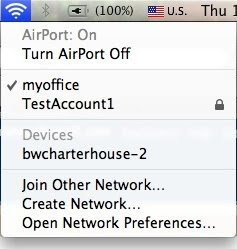
When having trouble accessing a web site, clearing the DNS cache may help:
In OS X 10.5 only:
Type dscacheutil -flushcache (or copy/paste dscacheutil -flushcache ) into the terminal window.
and press the 'Return' key.
In OS X 10 - 10.4
Goto the Terminal.
Type lookupd -flushcache (or copy/paste lookupd -flushcache ) into the terminal window.
and press the 'Return' key.
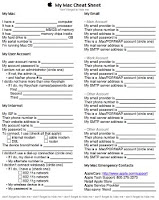
Click here for an Apple 'cheat sheet'.
Troubleshooting:
(Assuming the computer is configured [rather quickly for testing; or have a sleep corner active] through the Energy Saver preference pane...)
Unplug all USB devices including HDs and hubs to try and discover the culprit preventing sleepification.**
Drag your 'Energy Saver' preference pane [mainHD/Library/Preferences/SystemConfiguration/com.apple.PowerManagement.plist] to the desktop, and try to sleep the machine.
(reconfigure the Energy Saver preference pane (or place back into its folder, if this didn't work....)


