Showing posts with label Mac OS X Tips. Show all posts

Thursday, October 17, 2013

Thursday, August 2, 2012

Macintosh Keychain Repeatedly Prompts For Access To Confidential Information…

Symptom:
The Mac computer continually [every power-up, reboot, or when the program is ran] asks for permission for an application to access a keychain.


Possible Cause:
The password is flagged to prompt every-time an application requests it.


Please Note:
This is a safety check put in place to protect the system from potential harm from unsafe programs.

Use this solution only if you are familiar with both the application or process which is asking, and the password it is requesting; as this will grant permanent permission.


Possible Solution:
Allow the application permanent access to the password:
(This is assuming the “Always Allow” option was tried previously.)

[Note: 1Password is shown for demonstration purposes only, choose the actual password and application/process appearing in your dialog box….] 


1.) Open Keychain Access from the Utilities folder [found within the Applications folder].

2.) Select the password referenced in your pop-up dialog box:


<- example referenced password.


<- example referenced password.


3.) Double-click your referenced password (or right-click and choose “Get Info”) from the Keychain Access list.

4.) Click “Access Control” in the pop-up box, and;

5.) Click the little plus sign in the lower left corner to “always allow access” to the password.


6.) Locate the application, [or process] or search for it and click “Add”.


7.) Click “Save Changes”.


Done.

Friday, July 22, 2011

Tuesday, November 23, 2010

Use Your iPad As A Second [Wireless] Monitor:

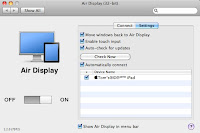
Available from the Apple App Store ‘Air Display' [$9.99US] will allow you to use your iPad through your wireless network as a second monitor with your Macintosh, or regular PC.

It works pretty well, although a tad sluggish [tried on a ‘G-band’ WiFi network].

Pricey, but a pretty good application overall.


Align like any other monitor.
The iPad resolution is 768 X 1024 [or 1024 X 768 :^].


Some Screen savers display on both monitors, albeit with some delay; especially the more animated ones [like this one via MacUpdate].


Main screen, and iPad to the right.
There’s a little optional drop-down menu with preferences for the menu bar at the top.


Apparently it works with the iPhone, and iTouch too, and adds touch-screen to the device monitor. Cool.

Tuesday, March 30, 2010

MacWorld coverage of changes to Mac OS 10.6.3

MacWorld article with some details of the improvements in the minor OS upgrade offered on Monday.
Scroll to the bottom for a Terminal command line to show a detailed list from your machine of files modified (once the free update is installed.)

The Unofficial Apple Weblog’s take here.

Monday, January 25, 2010

Comcast offers free Norton Anti-Virus for Macintosh to its internet subscribers

Comcast US has switched vendors from McAfee to Norton Anti-Virus, and now offers the Norton Suite free to its Apple Macintosh subscribers.

Including Norton Anti-Virus, their own version of a Firewall, Phishing protection, and Norton Confidential which protects your personal data.

Login to Comcast with your eMail address, and password, click 'More...' option (down the left-hand side of the screen) and click 'Computer Security...' to goto the information page to download.

Reboot as directed, then run 'LiveUpdate' from Applications > Symantic Solutions to download the latest updates.

Friday, May 9, 2008

Mac OS X keyboard shortcuts:


Please Note:
Hold down the modifier keys, and then press the letters...
These are default keystrokes -unless specified. You can change them using the 'Keyboard & Mouse' Preference pane....
"Object" infers a highlighted, or selected item (folder, or icon).


Command-A [Edit menu] Select All.
Shift-Command-A [Finder; Go menu] Open Applications folder.

Command-B [View menu] Hide toolbar.

Command-C [Edit menu] Copy object.
Option-drag Copy dragged files to new location.
Command-drag Move dragged files to new location.
Option-Command-drag Create alias (shortcut) of dragged files/folders.
Shift-Command-C [Finder; Go menu] Open Computer window.

Command-D [File menu] Duplicate object.
Control-Command-D [Dictionary] Define selected or hovered word.
Option-Command-D Toggle hide/show Dock.

Command-E [File menu] Eject media; CD, DVD, Mounted volume...

Command-F [File menu] Find...
Shift-Command-F [Finder; Go menu] Open favorites folder.

Shift-Command-G [Finder; Go menu] Goto... folder.

Command-H [App menu] Hide (focused, or top) application.
Option-Command-H Hide other (not-focused) applications.
Shift-Command-H [Finder; Go menu] Open Home folder.

Command-I [File menu] Get info on object.
Option-Command-I Show attributes Inspector.
Shift-Command-I [Finder; Go menu] iDisk.
Shift-Command-I [Safari] Send current page to mail (New message.)

Command-J [View menu] Show view options on object.

Command-K [Go menu] Connect to server...

Command-L [File menu] Create alias (shortcut, or pointer to object).

Command-M [Window menu] Minimize (focused, or top) window.
Option-Command-M Minimize all (focused or top applications) windows to dock.

Command-N [File menu] New Finder window.
Shift-Command-N [File menu] New folder.

Command-O [File menu] Open...

Command-P [File menu] Print.

Command-Q [App menu] Quit (focused, or top) application.
Shift-Command-Q Quit all applications and log-out.
Shift-Option-Command-Q Log-out without warning.

Command-R [File menu] Show original object.

Command-S [File menu] Save project.
Shift-Command-S Save as...

Command-T [File menu] Add object to favorites.

Command-V [Edit menu] Paste (previously copied) object.

Command-W [File menu] Close (focused, or top) application window.
Option-Command-W Close all windows.
Shift-Option-Command-W Close all windows and dialog boxes.

Command-X [File menu] Cut object.

Shift-Command-Y Creates a new sticky note from selected text.

Command-Z [File menu] Undo.


Command-Delete [File menu] Move to trash.
Shift-Command-Delete [Finder menu] Empty trash.
Shift-Option-Command-Delete Empty trash without dialog box.


Command-1 View as icons.

Command-2 View as list.

Command-3 View as columns.
Shift-Command-3 Screen snapshot to desktop.
Shift-Control-Command-3 Copy entire screen to clipboard.
(Escape to cancel. Pictures saved as TIFF files; PDF files for Mac OSX 10.2 & newer.)

Command-4 View in Cover-flow.
Shift-Command-4 Snapshot of selected area to desktop.
Shift-Command-4-Space Snapshot of window to desktop.
Shift-Control-Command-4 Copy selected area to clipboard.
(Escape to cancel. Pictures saved as TIFF files; PDF files for Mac OSX 10.2 & newer.)


Option-Command-Esc Force Quit dialog box.
Shift-Option-Command-Escape (hold 4 seconds) Force quit current application.
Command-. (period) Stop process.

Control-Eject Dialog box; Restart, Sleep, Shutdown.

Shift-Control-Eject Put display to sleep.

Control-Command-Eject Quit all Apps and Restart.

Option-Command-Eject Sleep Now.
Option-Command-Power Sleep Now.

Control-Option-Command-Eject Shut down immediately.


Command-? [Help menu] Open Mac help.

Command-[ [Finder; Go menu] Back.

Command-] [Finder; Go menu] Forward.


Option-left arrow [Editing text] Move to beginning of current or previous word. (Hold Shift to select through.)
Command-left arrow [Editing text] Move to beginning of line. (Hold Shift to select through.)
Command-left arrow Collapse folder in list view.

Option-right arrow [Editing text] Move to the end of current or next word. (Hold Shift to select through.)
Command-right arrow [Editing text] Move to end of line. (Hold Shift to select through.)
Command-right arrow Expand folder in list view.
Option-Command-right arrow Expand folder including nested sub-folders in list view.

Command-down arrow [Editing text] Move to end of all text. (Hold Shift to select through.)

Command-up arrow [Editing text] Move to beginning of all text. (Hold Shift to select through.)
Option-Command up arrow Open parent folder while closing existing window.


Option-Space
Inserts a "non-breaking space" into a document.
Command-Space Open Spotlight.
Command-Alt-Space Open Spotlight Guide.


Function-Delete "Forward Delete"


(Video/Audio & Miscellaneous Shortcuts:)

Option-Function-1 Open Displays Preference pane.
Command-Function-1 Switch between video mirroring and extended desktop screens.

Option-Function-2 Open Displays Preference pane.
Command-Function-2 Auto-detect new display.

Option-Function-3, 4, 5 Open Sound Preference pane.

Function-8 Toggle Spaces display.
Shift-Function-8 Toggle Spaces display -slow motion.

Function-9 Show all open windows.
Shift-Function-9 Show all open windows -slow motion.

Function-10 Show all windows for focused or top application.
Shift-Function-10 Show all windows for focused or top application -slow motion.

Option-Function-8, 9, 10 Open Keyboard and Mouse Preference pane.

Function-11 Minimize all windows.
Shift-Function-11 Minimize all windows -slow motion.

F12 Eject media.
Function-12 Open / Close Dashboard.
Shift-Function-12 Open / Close Dashboard -slow motion.

F14 Dim display.

F15 Brighten display.


Option-Command-S (While viewing video) Creates a picture from the playing video, or iChat.
Command-click and drag to send a picture clipping to the finder, or another application.


Option-quick look (Customized window) Display full screen.


Hold down Control while using a scroll-mouse to zoom the screen in and out.


From the comments:
Concerning dialog [pop-up operating system] boxes:
Pressing the 'Esc' - escape key will select the 'Cancel' button.
Pressing 'Tab' to move between options.
Pressing 'Return' to select the highlighted option.
Thanks Nicolas!

Tuesday, May 6, 2008

Option key [Apple OS X Finder] window buttons:


Holding down the 'Option' key while pressing;

The red (left; close) dot, closes all of that application's windows.

The yellow (middle; minimize) dot, minimizes all of that application's windows to the dock.

The green (right; maximize) dot, maximizes all of that application's windows.


In addition, 'Option' clicking an icon in the dock hides all of that application's windows.


Friday, May 2, 2008

Can't send eMail with comcast account?


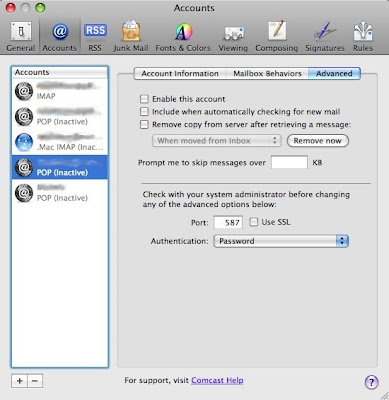
Change the outgoing server port to 587, but don't check SSL...

Run mail.
Select the 'Mail' menu (next to the Apple symbol).
Select 'Preferences'.
Click 'Accounts' in the window which opened.
Select the comcast account.
Click 'Advanced'.
Change the port number from 110 or 995, to 587. Don't check SSL.
Close the window, Click 'Save' when prompted.


Monday, April 21, 2008

Mac OS X Startup / Shutdown Shortcuts


Press and hold 'C' during startup
Start up from a CD / DVD that has a system folder.

Press and hold 'D' during startup
Forces internal disk to boot. (If system volume.)

Press and hold 'N' during startup
Attempt to start up from a compatible network server (NetBoot).

Press and hold 'T' during startup
Start up in FireWire Target Disk mode (access through FireWire to a second computer, this computer acts like external HDD).

Press and hold 'X'  or  '-X'  (Command-X) during startup
Force Mac OS X startup.

Press and hold 'Z' during startup
Attempt to boot from first bootable partition (primary drive).

Press 'F8' during startup
Mac OS X boot partition selector.


Press and hold ''  or  (Eject) [or 'F12' key] or [Command-E] or [Depress Left Mouse Button] during startup
Forces ejection of a CD / DVD.

Press and hold ''  (Option) during startup
Allows temporary selection of startup volume through the use of an icon lineup.

Press and hold ''  or  (Shift) during startup
start up in Safe Boot mode. (Temporarily disable login items and non-essential kernel extensions.  Mac OS X 10.2 and later.)

Press and hold ''  or  (Shift) after startup boot-screen
Overrides auto-login.

Press and hold ''  or  (Shift) after login
Safe login mode. (Disables user login items and non-essential user extensions.  Mac OS X 10.2 and later.)


Press and hold '-S'  or  (CommandS' during startup
Start up in Single-User mode.

Press and hold '-V'  or  (Command-V' during startup
Start up in Verbose mode.  (Displays console messages and disables user login items and non-essential user extensions.)


Press and hold '--O-F'  or  (Command-Option-O-F) during startup
Invokes Open Firmware.

Press and hold '--P-R'  or  (Command-Option-P-R) during Startup until a second startup sound
Resets Parameter RAM.

Press and hold '--N-V  or  (Command-Option-N-V) during startup
Resets non-volatile RAM.


Press and hold ' -  -  - '  or  (Option-Command-Shift-Delete) during startup
Bypass primary startup volume and seek a different startup volume (such as a CD, DVD, or external disk).

Press and hold ' -  - ' and press the power button  or  ( Command-Control-Shift-Power) [while computer off]
Resets the power manager state to default.


Press '-'  (Control-Eject)  or  Power button
Brings up the Restart, Sleep, or Shutdown dialog box.

Press '--'  (Command-Option-Eject)
Fast sleep. (No confirmation)

Press '---'  (Command-Option-Control-Eject)
Fast Shutdown. (No confirmation)

Press '--'  (Control-Shift-Eject)
Display off.  (Note: Not secure.)